Active Time vs Idle Time: How Employee Productivity Tracking Works
· Updated · 6 min read
- Active Time
- Idle Time
- Productivity Tracking
- Employee Monitoring
- Time Tracking
- Reports
- Remote Teams
- Fair Monitoring
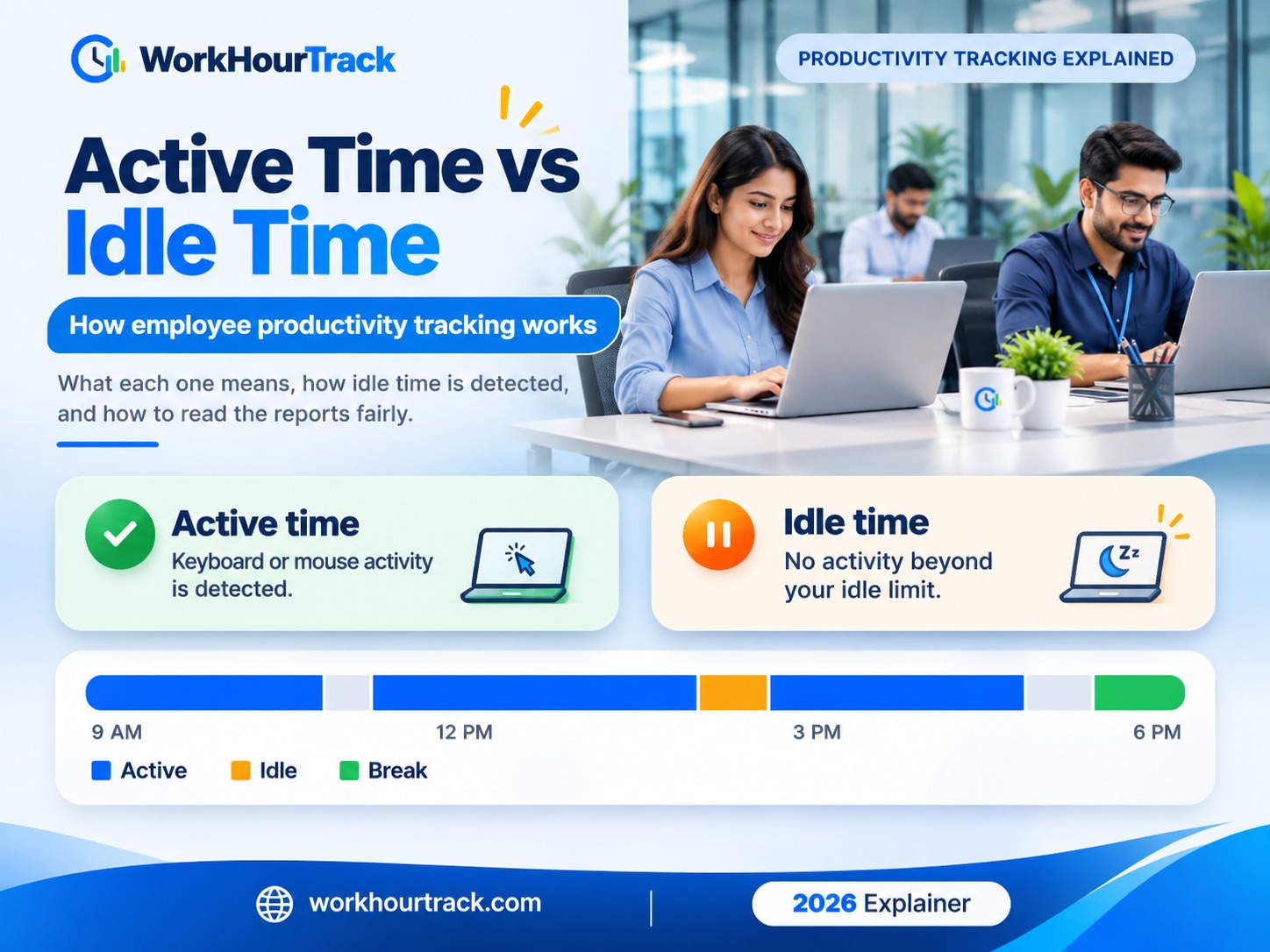
Active time vs idle time is the most common split in employee productivity tracking: active time is when the computer shows keyboard or mouse activity, and idle time is when it does not. Understanding the difference helps managers read reports fairly and helps employees trust the numbers. This guide explains how each is measured, why idle time does not always mean an employee is not working, how to set sensible limits, and how to use the data without damaging trust. For the bigger picture, see our overview of employee monitoring software in India.
Active time vs idle time: what is the difference?
- Active time: periods when the tracking software detects keyboard or mouse activity on the work computer.
- Idle time: periods with no keyboard or mouse activity beyond a set limit, such as five minutes.
- Break time: time recorded as a break, separate from working and idle time.
- Productive time: active time that is spent on work apps and websites, with idle and non-productive time taken off.
Most tools show these as a timeline for each day, so you can see when someone worked, paused and returned.
How idle time is detected
The software watches for input from the keyboard and mouse. If nothing happens for a set period, the time after that point is counted as idle until activity returns. Many tools use a default of around five minutes and let admins change it.
Two things are worth knowing:
- Only activity is measured. Good tools keep counts of key presses and mouse clicks, not which keys were pressed or what was typed.
- Detection is not perfect. If a mouse is nudged while someone is away, the software may count that as activity.
Why idle time does not always mean "not working"
A computer cannot see everything an employee does. Common reasons for idle time that are real work include:
- Meetings and video calls where the person talks more than they type
- Phone calls and customer conversations
- Reading documents, specifications or code before writing anything
- Thinking, planning or sketching on paper
- Short breaks, which are normal and healthy
This is why one idle gap should never be judged on its own.
Why active time is not always productive time
The opposite is also true. An employee can be very active on a non-work website. That is why many tools also categorise apps and websites, so you can mark which ones count as productive. Active time tells you someone was at the computer, and app and website data tells you what they used it for.
How to read active and idle time reports fairly
- Look at trends over weeks, not one bad day.
- Compare like with like. Developers, designers, sales and support roles have very different work patterns.
- Combine activity with output, such as tasks completed, tickets closed or projects delivered.
- Talk first, before you draw conclusions from a number.
- Use the data to coach. Research on call centres finds that using monitoring information to develop workers, rather than only discipline them, improves the workplace climate.
How to set a sensible idle limit
- Start with the common default, around five minutes, and check what it shows for a pilot team.
- Adjust by role. Roles with long reading, meetings or phone calls may need a longer limit.
- Tell employees the limit so there are no surprises.
- Review it after a month, and change it if reports look unfair.
Common mistakes to avoid
- Treating idle time as proof that someone is not working
- Comparing people with very different roles on the same number
- Using one metric, such as activity percentage, as the only measure of performance
- Not telling employees what is measured and why
- Ignoring meetings, calls and breaks when you read reports
Privacy and transparency
Tell employees what is tracked before tracking starts, collect only what you need, and keep tracking to work devices. Read our guide on whether employee monitoring is legal in India for the data-protection basics.
How WorkHourTrack shows active and idle time
WorkHourTrack tracks work hours automatically in the background and separates working, idle and break time.
- Daily timeline: each employee's day is shown with working, idle and break periods.
- Live status: the dashboard shows employees as active, idle or offline.
- Productivity reports: daily and weekly reports compare each employee against the mandatory hours, with idle and non-productive time taken off.
- Your own rules: you choose which apps or window titles count as non-productive.
- Transparency: each employee accepts a notice before tracking starts, and only counts of key presses and mouse clicks are kept, never which keys were pressed.
- Export: reports can be downloaded as CSV files.
See the full feature list, the homepage FAQ and the pricing section. You can start with a 3-day free trial, no credit card required.
Frequently asked questions
Does idle time mean an employee is not working?
Not necessarily. Idle time means the computer saw no keyboard or mouse activity. Meetings, calls, reading and thinking can all happen without input, so read idle time together with output, role and context.
How long before software marks someone as idle?
It depends on the tool and its settings. Many tools use a default of around five minutes and let admins change it. Choose a limit that suits the roles you are tracking.
Is active time the same as productive time?
No. Active time shows activity on the computer. Productive time also considers which apps and websites were used, so work apps count and non-work sites do not.
How can I use idle time reports without hurting trust?
The software watches for input from the keyboard and mouse. If nothing happens for a set period, the time after that point is counted as idle until activity returns. Many tools use a default of around five minutes and let admins change it.