Windows and Mac Employee Monitoring Software: What Businesses Should Know
· 6 min read
- Windows
- macOS
- Employee Monitoring
- Mixed Devices
- Remote Teams
- Privacy
- Setup
- Buying Guide
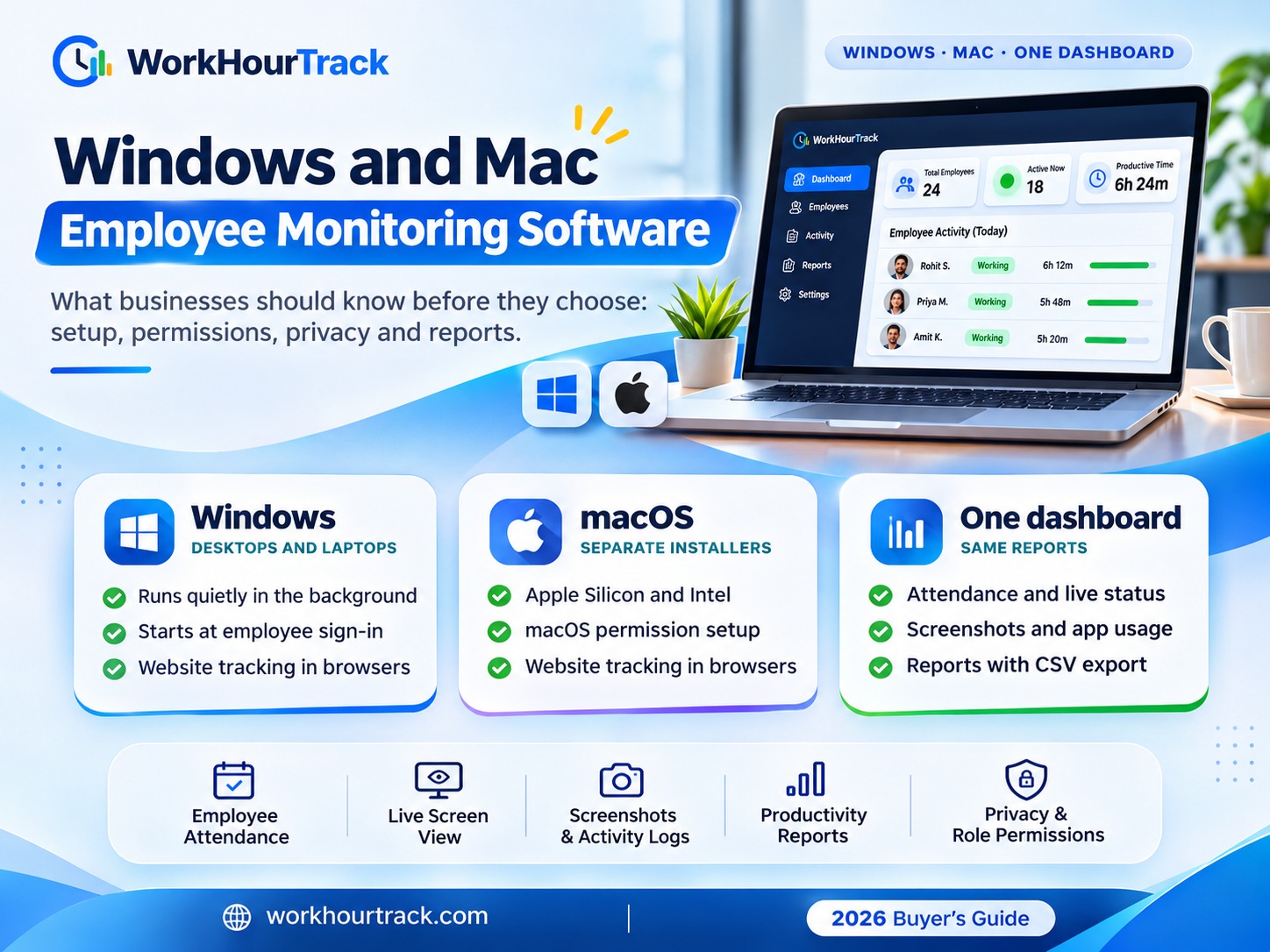
Windows and Mac employee monitoring software lets a business track attendance, work hours, screenshots and app usage across every computer in the company from one dashboard, whichever operating system each person uses. Most offices are no longer all-Windows: designers, developers and managers often work on Macs, while operations and support teams use Windows. This guide explains how Windows and Mac monitoring differ in practice, what to plan for on macOS, what to ask a vendor, and how to roll out one tool across a mixed team. If you are comparing tools, start with our overview of employee monitoring software in India.
Why choose Windows and Mac employee monitoring software
- Mixed offices are common. Different teams buy different computers, and a tool that supports only one system leaves gaps in your reports.
- One set of reports. When every employee appears in the same dashboard, attendance, hours and productivity are comparable across teams.
- Fair treatment. Using the same rules and the same notice for everyone, whatever their computer, keeps monitoring consistent.
- Easier management. One tool means one policy, one vendor and one bill.
How Windows and Mac monitoring differ in practice
- Installation. Windows and macOS need separate installers, and Mac installers differ for Apple Silicon and Intel chips.
- Permissions. macOS asks users to approve what an app may do, such as screen capture. Windows generally does not ask in the same way.
- Browser and website tracking. Check which browsers are supported on each system.
- Updates. New Windows and macOS versions can change how apps behave, so the vendor should keep the app updated.
- Bulk deployment. IT teams often use different management tools for Windows and Mac fleets.
What to plan for on macOS
macOS protects user privacy with permission prompts. An app that takes screenshots needs the Screen Recording permission, and other features may need Accessibility. Screen Recording cannot be pre-approved through device management, so the user has to enable it. Accessibility can often be pre-configured by IT, but Apple has been changing how these permissions can be pre-approved in newer macOS versions.
What to do about it:
- Test on the macOS versions you use before rolling out to everyone.
- Give Mac users a short setup guide with screenshots of the permission screens.
- Pick the right installer, Apple Silicon or Intel, for each Mac.
- Allow time for first-day support, since most setup problems happen at the permission step.
What to plan for on Windows
- Silent background running. A good Windows app runs quietly in the background and starts when the employee signs in.
- Install rights. Check whether installation needs administrator access.
- Security software. Ask your IT team to allow the app in antivirus or firewall tools if needed.
- Bulk deployment. Ask the vendor whether it supports the installation method your IT team already uses.
What should stay the same on both systems
Whatever the operating system, the rules should be identical:
- The same notice explaining what is collected and why.
- The same data collected, with no extra tracking on one system.
- The same reports and access rules, so managers see consistent information.
- The same visible app, so employees can see when tracking is running.
Questions to ask any vendor
- Which Windows and macOS versions are supported?
- Are there separate installers for Apple Silicon and Intel Macs?
- What permissions does the Mac app need, and how are they approved?
- Do all features work the same on both systems, including website tracking?
- Does the price cover one user on more than one computer?
- Can the app be deployed in bulk through our device management tools?
- Does it update automatically, and what happens when macOS or Windows updates?
- What happens if we also have Linux or Chromebook devices?
Privacy and transparency on personal devices
Employee monitoring should focus on work devices. Tracking a personal laptop or personal accounts carries more legal and trust risk. Give employees a clear notice, collect only what you need, and read our guide on whether employee monitoring is legal in India. For a view of the rules on records and working hours, see employee attendance and time tracking.
How to roll out one tool across Windows and Mac
- List your devices: how many Windows computers, how many Macs, and which chips.
- Write a short policy and notice and share it with everyone.
- Pilot with a small mixed group using a free trial.
- Fix setup issues from the pilot and update your Mac guide.
- Roll out in stages, and review the first reports with team leaders.
How WorkHourTrack supports Windows and Mac
WorkHourTrack gives every employee, on either system, a place in the same dashboard.
- Windows: the desktop app runs quietly in the background and starts tracking when the employee signs in.
- macOS: separate installers for Apple Silicon and Intel Macs.
- Websites: sites visited in supported browsers are recorded as the site and page, never what was typed or searched.
- Same reports: attendance, live status, screenshots, app usage, daily and weekly reports, overtime and CSV export.
- Transparency: each employee accepts a notice before tracking starts, and the app shows when it is running.
WorkHourTrack supports Windows and macOS computers. See the full feature list, the pricing section, the homepage FAQ, and our Security Policy. You can start with a 3-day free trial, no credit card required.
Frequently asked questions
Does employee monitoring software work on both Windows and Mac?
Many do, but support varies. Check the supported Windows and macOS versions, whether Mac installers cover both Apple Silicon and Intel, and whether all features work on both systems.
Do Macs need extra permissions for employee monitoring software?
Yes, usually. macOS asks users to approve permissions such as Screen Recording for screenshots, and these often cannot be pre-approved by IT. Plan a short setup guide and test on the macOS versions you use.
Can I see Windows and Mac employees in one dashboard?
Yes, with a tool that supports both. With WorkHourTrack, employees on Windows and Mac computers appear in the same dashboard and the same reports.
Does WorkHourTrack support Linux or Chromebook?
WorkHourTrack supports Windows and macOS computers. If you have Linux or Chromebook devices, check with the vendor before you choose a tool.